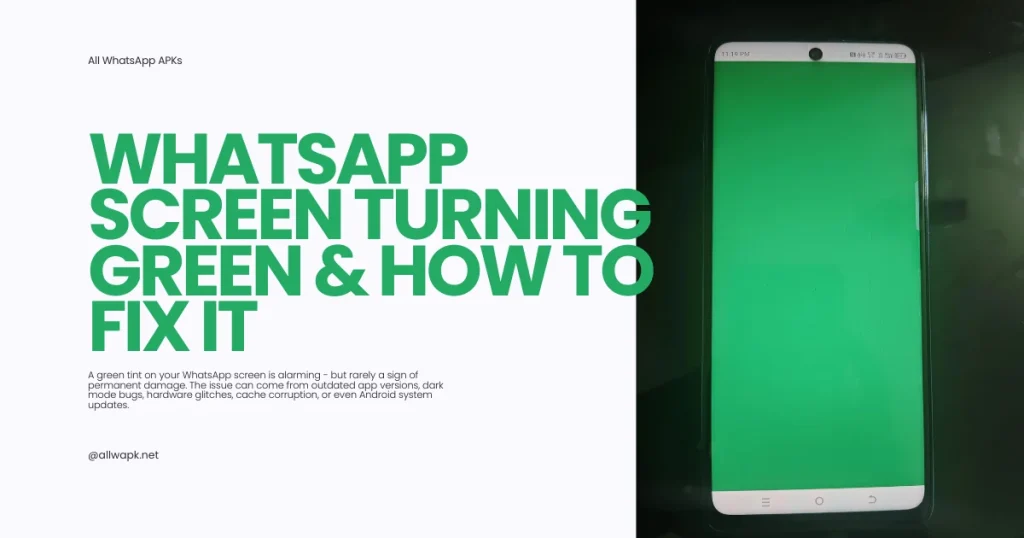
A green tint on your WhatsApp screen is alarming – but rarely a sign of permanent damage. The issue can come from outdated app versions, dark mode bugs, hardware glitches, cache corruption, or even Android system updates. The good news? Most causes are fixable in minutes. This guide walks you through every reason your WhatsApp screen turns green and the proven fixes that actually work.
Quick Answer
The WhatsApp screen usually turns green because of a software bug in the app version, a dark mode display glitch, corrupted cache files, an Android system issue, or a hardware problem with your screen. In 90% of cases, restarting your phone, clearing WhatsApp cache, or updating the app fixes the issue instantly.
What Does a Green Screen on WhatsApp Mean
A green screen on WhatsApp generally means the app is failing to render colors correctly. Sometimes only certain screens turn green (like chats or media preview), other times the entire app looks tinted. The cause can be software (most common) or hardware (rare). Identifying which one helps you fix it faster.
Top Reasons Your WhatsApp Screen Turns Green
Here’s an overview of the most common causes and their quick fixes.
| Cause | Quick Fix | Difficulty |
|---|---|---|
| Display hardware issue | Restart phone, test other apps | Easy |
| Outdated WhatsApp version | Update WhatsApp from Play Store | Easy |
| Dark mode rendering bug | Switch to light theme | Easy |
| Corrupted app cache | Clear WhatsApp cache | Easy |
| Android OS update glitch | Reinstall WhatsApp | Medium |
| GPU rendering conflict | Restart device | Easy |
| Color filter / accessibility | Disable color correction | Easy |
| Screen calibration issue | Reset display settings | Medium |
| Beta version bug | Switch to stable version | Medium |
Step-by-Step Solutions to Fix WhatsApp Green Screen
Try these solutions in order. Most users fix the issue with one of the first three.
Solution 1: Restart Your Device
The simplest fix solves the most cases. Restarting clears temporary GPU rendering issues and refreshes system memory.
- Press and hold the power button
- Tap Restart (or power off, then turn back on)
- Wait for the phone to fully boot
- Open WhatsApp and check if the green tint is gone
Solution 2: Clear WhatsApp Cache
Corrupted cache files often cause rendering bugs that show up as color tints.
- Open Settings on your phone
- Go to Apps → WhatsApp
- Tap Storage
- Tap Clear Cache (do not clear data — that deletes your chats)
- Reopen WhatsApp
Solution 3: Update WhatsApp to the Latest Version
If you’re running an outdated version, the green screen could be a known bug already patched.
- Open the Google Play Store
- Search for WhatsApp
- If you see Update, tap it
- Wait for the update to install
- Reopen WhatsApp
For modded versions like GB WhatsApp, download the latest APK from ALLWAPK.NET and install it over the existing one.
Solution 4: Switch Between Dark and Light Mode
The green tint often appears only in dark mode due to a rendering bug.
- Open WhatsApp
- Go to Settings → Chats → Theme
- Switch from Dark to Light (or vice versa)
- Restart WhatsApp
- If the green disappears, the issue is in your theme’s color profile
Solution 5: Reinstall WhatsApp
If clearing cache and updating didn’t work, reinstall the app.
- Back up your chats first — Settings → Chats → Chat Backup → Back Up
- Uninstall WhatsApp
- Restart your phone
- Download WhatsApp again from Play Store
- Verify your number and restore the backup
Solution 6: Check for Android System Updates
Sometimes an Android OS bug causes WhatsApp’s rendering to break.
- Open Settings → System → System Update
- If updates are available, install them
- Reboot your device after the update
- Open WhatsApp again to test
Solution 7: Disable Color Filters and Accessibility Settings
Accessibility features can apply color filters that affect specific apps.
- Open Settings → Accessibility
- Look for Color Correction, Color Inversion, or Color Filter
- Toggle them all off
- Restart WhatsApp
When the Problem Is Hardware (Not WhatsApp)
If the green tint appears in other apps too, the issue is likely your phone’s display, not WhatsApp. Look for these signs:
- Green tint appears in all apps, not just WhatsApp
- Tint persists after restart, cache clear, and reinstall
- Recently dropped or got the screen wet
- Display flickers or shows lines along with the green tint
- Tint is concentrated in one area of the screen
If any of these apply, contact your phone’s service center. It could be a loose display connector, OLED burn-in, or screen damage that requires professional repair.
Green Screen on Specific Phone Models
Some Android phone models have reported the green tint bug more often. Here’s a quick reference:
| Brand | Affected Models | Common Cause |
|---|---|---|
| Samsung | Galaxy S20, S21, S22 | OLED + dark mode rendering bug |
| OnePlus | OnePlus 8, 9 series | Display driver issue |
| Xiaomi | Mi 10, Mi 11 | MIUI dark mode rendering |
| Pixel | Pixel 6, 7 | Display panel anomaly |
| Realme | Realme 8, 9 | Color profile mismatch |
For these models, the most reliable fixes are switching to light mode, updating the system, or applying an official screen calibration patch from the manufacturer.
Green Screen on iPhone
Although less common, iPhones can also show a green tint on WhatsApp. The fixes are similar:
- Force quit WhatsApp (swipe up from the bottom and flick WhatsApp away)
- Restart your iPhone
- Update WhatsApp from the App Store
- Toggle dark mode off
- Reset display settings: Settings → General → Reset → Reset All Settings
If the green tint appears outside WhatsApp too, contact Apple Support — it could indicate a faulty display.
How to Prevent WhatsApp Green Screen Issues
Preventive habits keep the issue from coming back:
- Update WhatsApp regularly — every major update fixes rendering bugs
- Avoid beta versions unless you understand the risks
- Clear cache monthly — keeps app data fresh and reduces bugs
- Keep Android system up to date — patches often improve display rendering
- Avoid unnecessary accessibility filters — they can affect specific apps
- Don’t overuse battery savers — extreme power-saving modes can degrade rendering
- Restart your phone weekly — keeps GPU memory clean
When to Seek Professional Help
If you’ve tried every software fix and the green tint persists — only in WhatsApp or across all apps — it’s time to consider hardware repair. Look for these warning signs:
- Tint covers more than 25% of the screen
- Visible lines or dead pixels appear alongside the tint
- The screen shows green even when off (faint glow)
- Phone has been recently dropped or exposed to liquid
- Issue worsens over time
Visit a certified repair center for a display diagnostic. In many cases, a screen replacement resolves the issue completely.
Frequently Asked Questions
Is the green screen on WhatsApp permanent?
No, the green screen on WhatsApp is almost never permanent. In 9 out of 10 cases, it’s caused by a software bug, cache corruption, or dark mode glitch — all of which are fixable with a restart, cache clear, or update. Hardware-related green tints are rare.
Will reinstalling WhatsApp delete my chats?
Reinstalling WhatsApp will not delete your chats if you backed them up first. Always create a local or Google Drive backup before uninstalling, then restore it after reinstalling. Your messages, photos, and groups will be fully recovered.
Why does the green screen appear only in WhatsApp?
If the green tint shows only in WhatsApp, the issue is with the app itself — usually an outdated version, dark mode rendering bug, or corrupted cache. Try updating, clearing cache, or switching themes. If the tint appears in other apps too, it’s a hardware or system-level issue.
Does dark mode cause the green tint on WhatsApp?
Yes, dark mode is one of the most common causes of the green screen issue on WhatsApp. Some OLED displays render certain dark-mode colors incorrectly, leading to a green tint. Switching to light mode usually fixes the issue instantly.
Can a screen protector cause a green tint?
A poorly applied screen protector — especially a hydrogel or low-quality plastic one — can cause faint color shifts. But true green tints on WhatsApp are almost always software-related. Try removing the protector to rule it out, but expect the real fix to be in the app itself.
How do I check if it’s a hardware issue?
To check if the green screen is hardware-related, open other apps like YouTube, Camera, or Chrome. If the tint appears in those apps too, it’s hardware. If it’s only in WhatsApp, it’s a software issue you can fix with the steps in this guide.
Why does my green tint appear only on chats but not on the home screen?
This pattern usually points to a theme or dark mode rendering bug. The chat screen uses different color rendering than the home tab. Switching themes, clearing cache, or updating WhatsApp typically fixes this specific case.
Final Thoughts
A green WhatsApp screen looks scary but is almost always a quick fix. Start with the easy steps – restart, clear cache, switch theme – and work your way through the list. In most cases, you’ll be back to normal in under five minutes. If hardware turns out to be the culprit, professional help is the right next step.
For more WhatsApp troubleshooting guides, mods, and the latest APK downloads, visit ALLWAPK.NET – your trusted source for everything WhatsApp.